E-Banking
Fast, easy, secure banking
Powerful solutions to manage all your finances in one place ‒ at home or on the go. Convenient online banking is waiting for you, with Community Choice e-Banking!
Want to make things even easier? Download our app:



Welcome to online banking, reimagined
With e-Banking from Community Choice Credit Union, you’ll enjoy a simple, smart way to manage your money online. Designed around how you actually bank, our digital banking platform makes everyday tasks like checking account balances, paying bills, transferring funds, and applying for loans feel effortless and intuitive. With secure, mobile-friendly access anytime, anywhere, you’re always in control of your finances.
Simplified, personalized interface
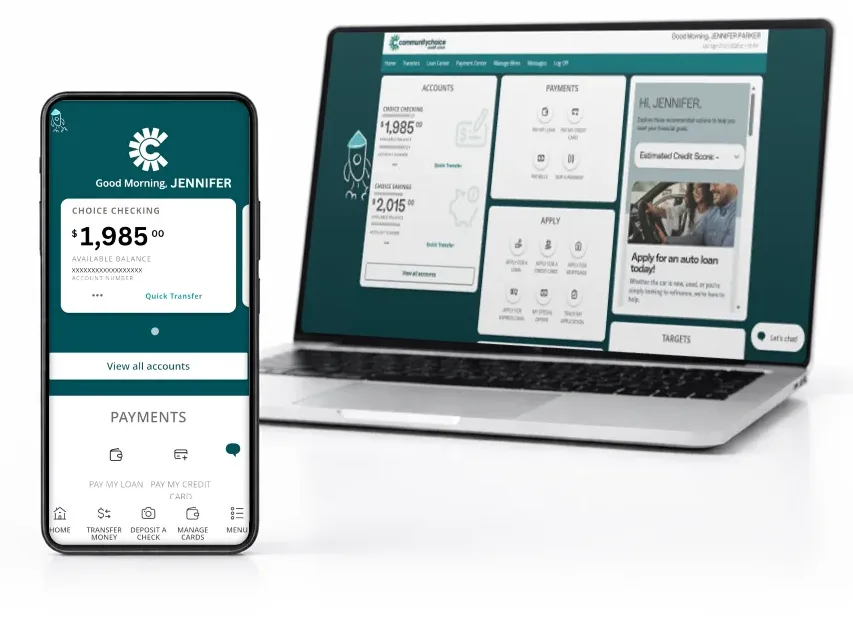
Your e-Banking experience lets you customize the features you use most and see special opportunities just for you. From your convenient home screen, you can do almost anything in just a few clicks, including:
- Customize your home screen and scrolling tiles
- Manage accounts
- Apply for a loan, mortgage, or credit card
- Take control of your credit score with advanced analysis tools
- Pay bills
- Transfer money and manage external accounts
- Deposit checks
- Manage card controls
- View Mobile Quick Balance
- Use budget tools
- Track your Choice Map, our financial planning tool

All your money, one easy view – connect your accounts in e-Banking
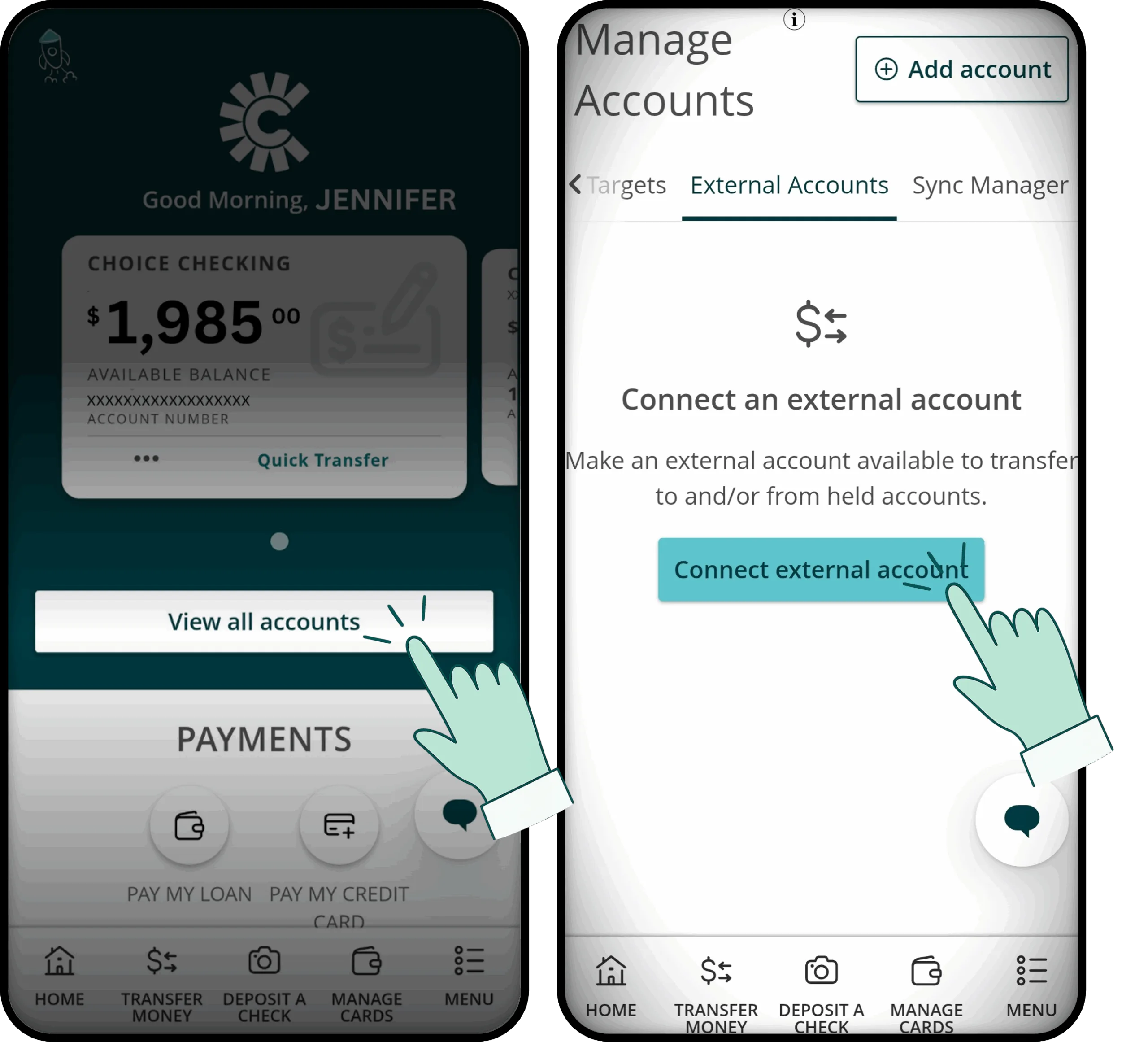
Imagine opening e‑Banking and seeing all your Community Choice accounts and those you hold elsewhere on one clean, simple screen. With connected external accounts, you can securely link other institutions in just a few steps, giving you one convenient place to manage your money without switching apps or guessing balances. Once connected, moving money is fast and easy, whether you’re paying bills, saving, or tackling debt.

Easily track your spending, all one place
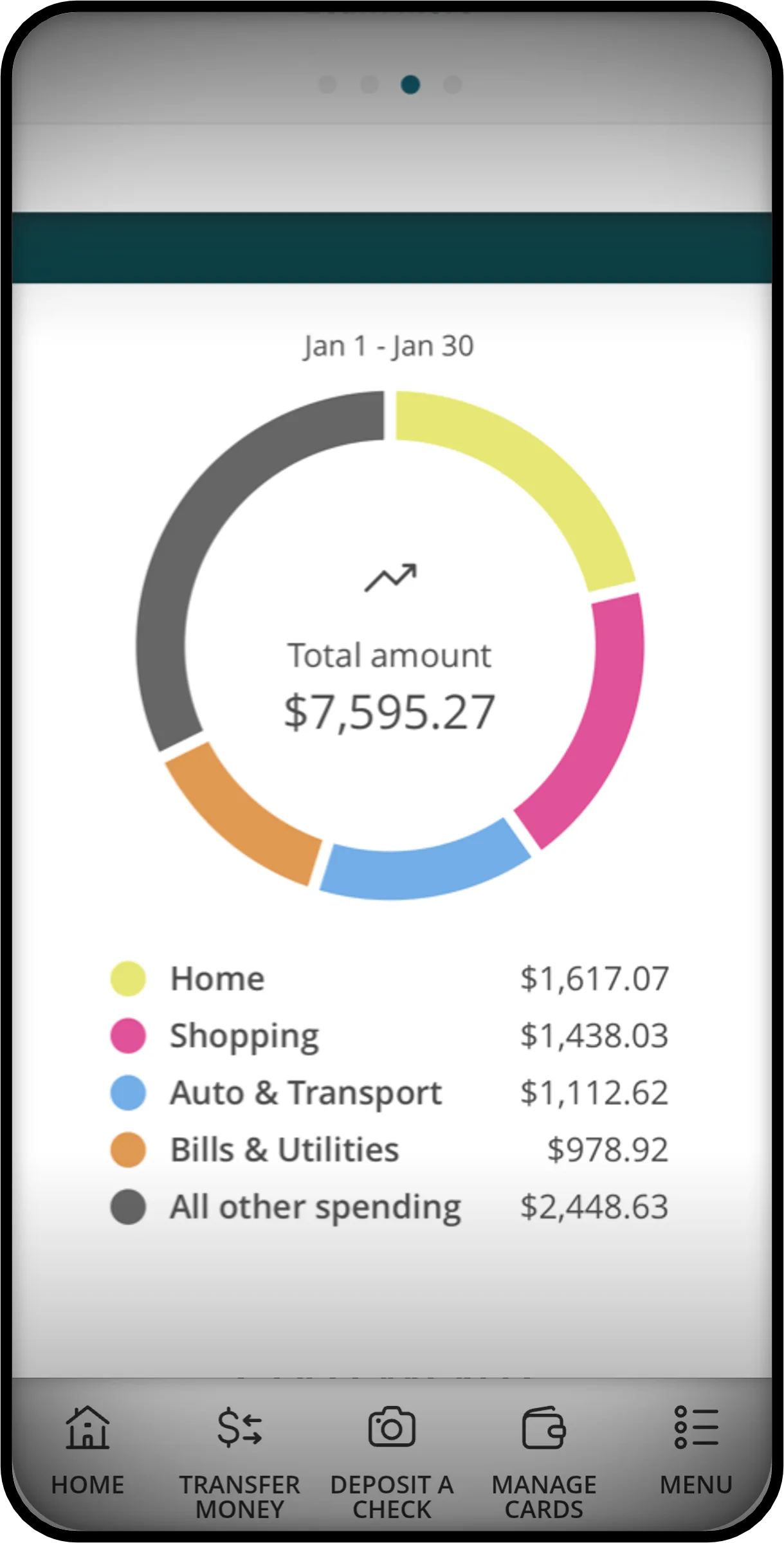
Want a quick snapshot of your spending? Community Choice’s e‑Banking makes it easy to see where your money is going with clear, color‑coded categories and a simple chart that brings everything together at a glance. You can quickly spot trends, track everyday expenses, and feel more confident about what’s happening in your accounts. It’s an easy, visual way to stay in the loop, whether you’re taking a quick peek or doing a deeper look on the go.

Apply for what you need, right inside e-Banking
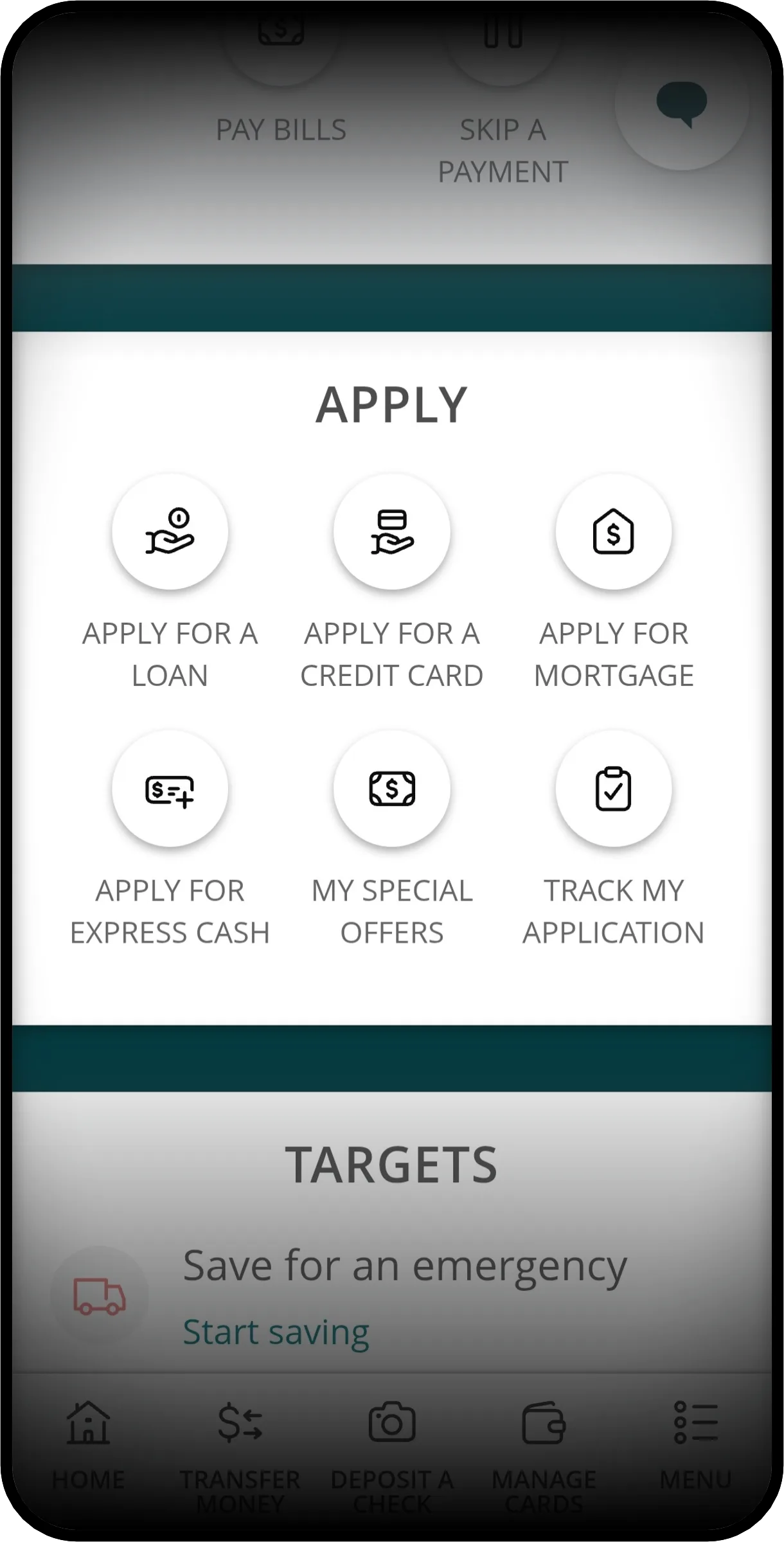
If you need to get a loan online, the fastest way is applying directly through Community Choice e‑Banking. Applying for a loan, credit card, mortgage, or other financing should feel effortless and stress-free, and that’s how we’ve designed this process. You can explore borrowing options and submit applications in just a few taps. No extra websites, no appointments, no stress. Everything you need is already in your pocket, available 24/7, for whatever you need.

Saving for what matters is easy with Targets
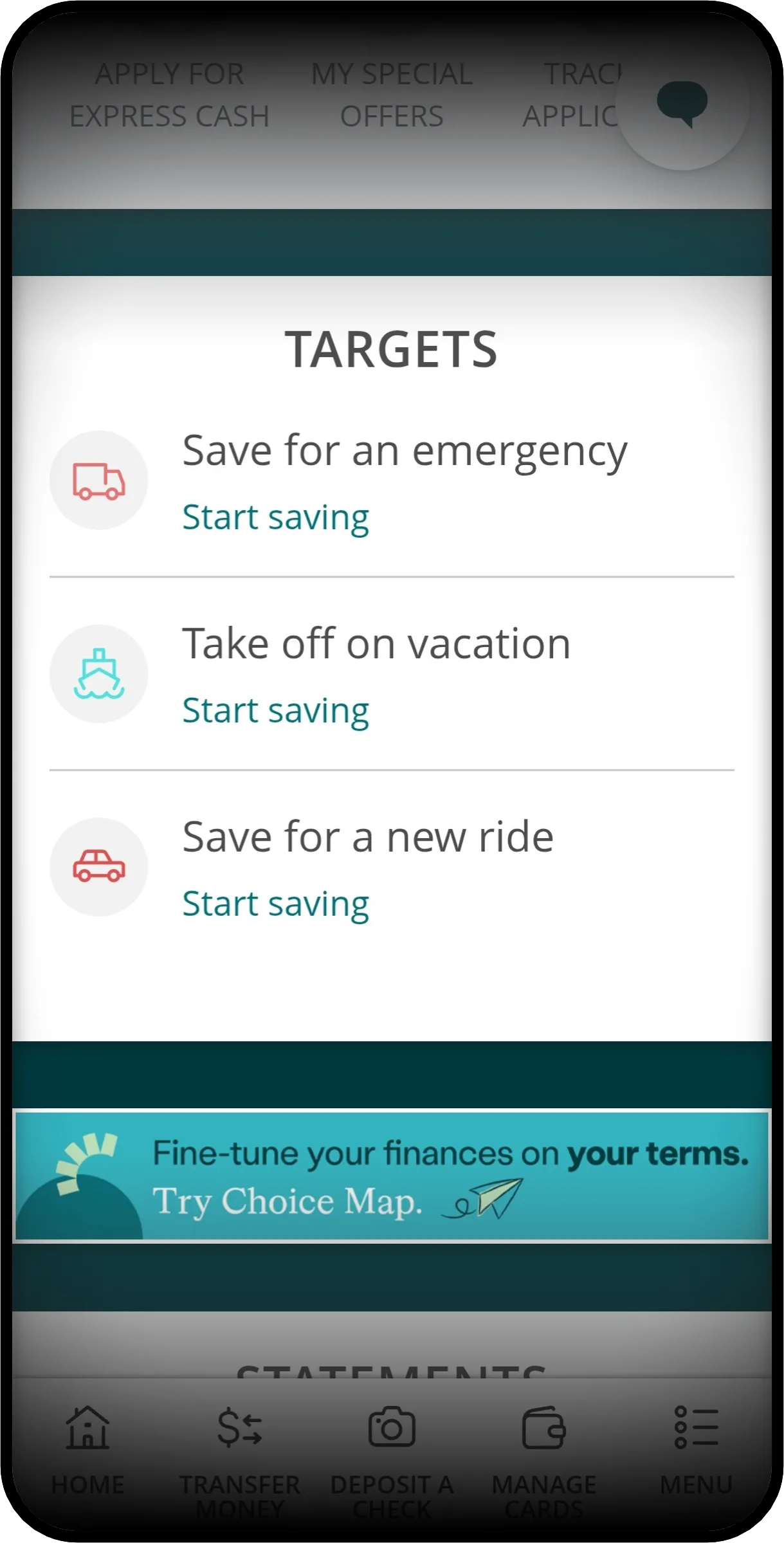
Have big plans ahead, like a vacation, a new car, or the comfort of a solid emergency fund? Community Choice Targets makes saving for life’s moments simple and motivating. Set a goal, choose your amount and deadline, and Targets shows you a clear path forward. Track your progress anytime on your phone or desktop, and save your way with automatic transfers or manual deposits that fit your budget. You can even create multiple Targets, giving every goal its own focus and momentum.

Monitor your credit score and more
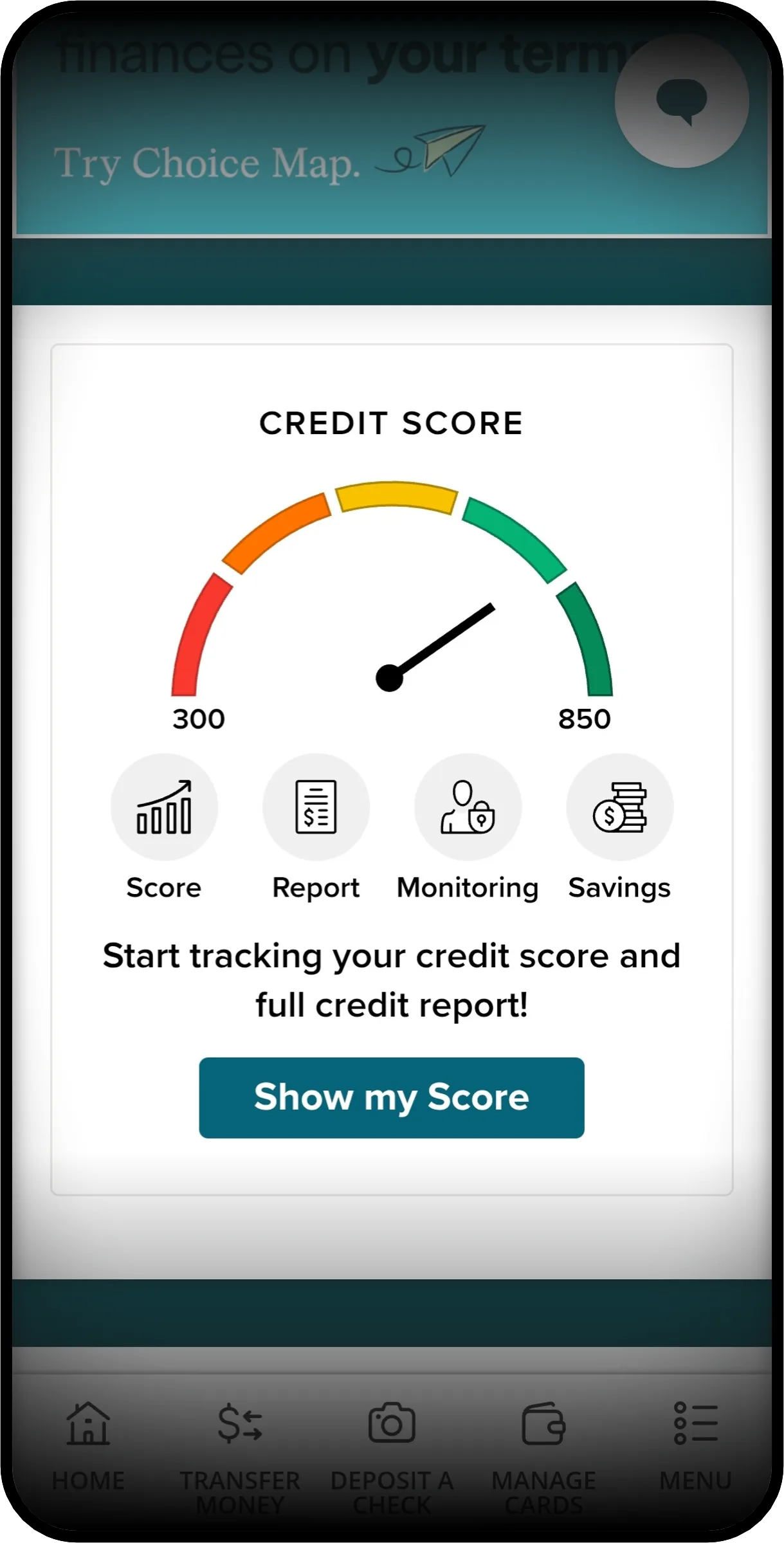
With instant access to your full credit report, staying on top of your financial health is simple. Powered by SavvyMoney, this tool shows what’s influencing your score so you can make confident decisions that may help lower interest rates, all without impacting your credit. You get daily monitoring for fraud alerts, clear insights into your score, a simulator to test scenarios like paying down balances, and secure reporting backed by TransUnion and VantageScore 3.0, plus refreshed scores, personalized offers, and alerts every 30 days.

Your pre-qualified offers, just a click away
Log in to e‑Banking to quickly see any pre‑qualified offers waiting for you in just a few taps!

e-Banking FAQs
Your e-Banking questions answered. See all frequently asked questions.
How do I enroll in e-Banking?
Complete our e-Banking Enrollment Form to get started. You can also contact an advisor at 877.243.2528 to enroll in e-Banking.
If you are accessing our site from a mobile device, we encourage you to download the Community Choice mobile application. On the main screen of the app, you will see the option to “Enroll in e-Banking.”
For your security, all information provided must match your account records before access to e-Banking is granted. If you are unable to enroll online, please contact us at 877.243.2528.
Get the features of e-Banking on your phone
With Mobile Banking, you can log in to see and manage all your Community Choice accounts on your smartphone, 24/7.


Learn more about Mobile Banking.
You may also need:
How do I link an external account?
Have a personal checking or savings account at another bank or credit union? Set up external transfers to move funds between accounts directly. Once the account is added you can use the account in the Move Money menu to transfer between accounts, pay your loan or pay your credit card.
External accounts must meet the following criteria:
- The account must be a checking or savings account held at a bank located in the United States.
- You must own the account and your name must be in the account title.
- This feature is only available to unrestricted accounts.
Add an External Account instantly
- Log in to e-Banking from the Community Choice mobile app or CommunityChoice.com.
- From the main menu select Move Money then select the Manage External Account tile and select Instant Verification
- Select Continue then Search for the Financial Institution
- Enter your credentials then select Submit
- Select your identity verification method then select Account then continue.
- After the verification is completed, you can now begin moving funds between your Community Choice account and external account.
Add an External Account Manually with Micro-Deposits
- Log in to e-Banking from the Community Choice mobile app or communitychoicecu.com.
- From the main menu select Move Money then select the Manage External Account Tile and select Micro-Deposits.
- Enter the account number, routing number, and account type of the external bank account you are linking.
- Two test deposits will be sent to your external account to confirm the information within 2-3 business days.
Verify the external account with Micro-Deposits
- After 2-3 business days, check the activity of the external account you linked for two small deposits from Community Choice. They may appear in your statement as Community Choice or have a more general description. Take note of the amounts.
- Log in to e-Banking from the Community Choice mobile app or communitychoicecu.com.
- From the main menu select Move Money then select the Manage External Account Tile.
- Select Verify on the account that needs to be verified under the Manage External Account(s) section.
- Enter the two micro-deposit amounts that you received in your external account and select Submit.
- After the verification is completed, you can now begin moving funds between your Community Choice account and external account.
To link a cash app (Venmo, PayPal, etc.):
Locate the app settings and follow the prompts. You will need to provide your account information which typically includes your 13-digit account number and the routing number for Community Choice, which is 272079021.
You can nickname these accounts in your e-Banking settings by selecting Account Preferences.
¹Microdeposits can take up to 5 business days to post to external accounts.
How do I protect myself on e-Banking?
Always remember, when using your mobile banking app or accessing other personal information on your device, make sure you’re on a secure private network. Locking your phone and keeping its password protected is another way to keep your information safe. A best practice to always keep your information safe is to make sure to never give your account number or login credentials to anyone.
Your security is our top priority
That’s why we’ve gathered helpful information and resources to help you stay alert and safe.
You may also need:
How do I change my e-Banking login ID/password?
Follow the steps below:
- Log in to e-Banking.
- Click on the Settings tab and select Security Preferences.
- Click on Change Password or Change Login ID.
You may also need:
Who do I contact regarding my e-Banking account being frozen or locked?
If you enter your e-Banking password incorrectly, you will be locked out after the fifth login attempt. To unlock your account, please contact us at 877.243.2528 or stop into a Member Center.
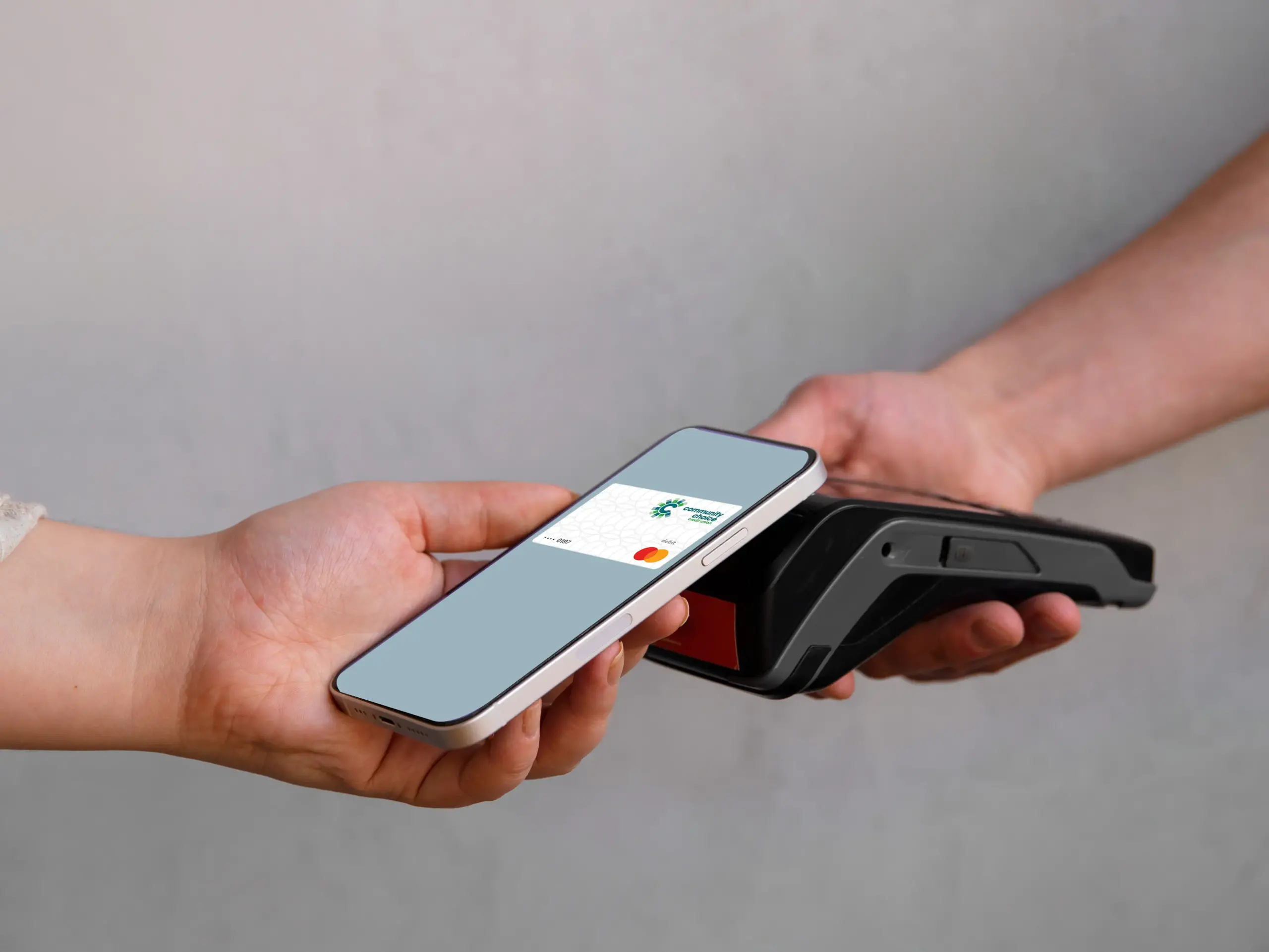
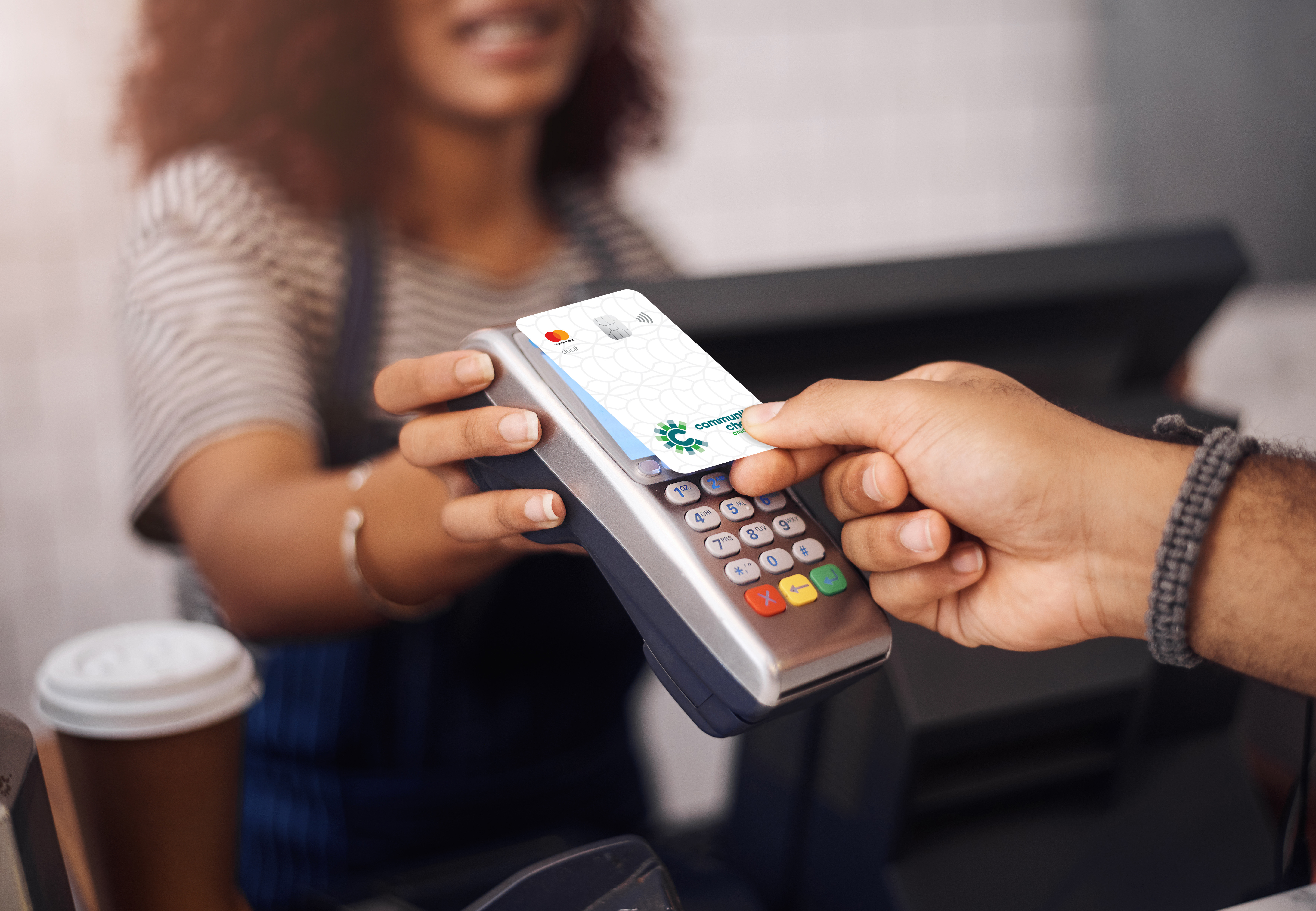
Add your Community Choice card to your digital wallet
- Secure and convenient
- Works in-person and online
- Supports peer-to-peer payments
- Available on most mobile phones
Get started with your choice of mobile wallet for a safer and easier way to pay!